
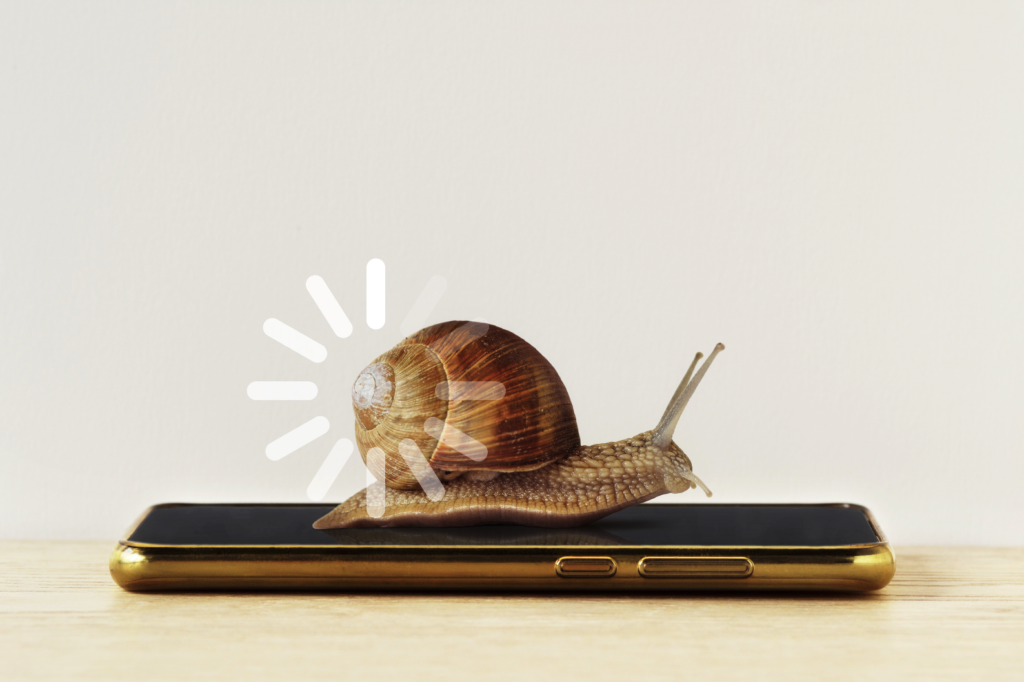
You tap an app and wait. And wait. Your phone freezes. Everything takes forever. You start wondering: “Is my phone broken? Do I need a new one?”
Before you panic or spend money on a new phone, let’s figure out what’s actually wrong – and how to fix it yourself.
First: You Probably Didn’t Break Anything
If your phone is running slow, it’s almost never because you did something wrong.
It’s usually because:
- Your phone’s storage is getting full
- Too many apps are running at once
- Your phone needs an update
- Temporary files have built up over time
All of these are normal. And all of them can be fixed without losing your photos, contacts, or anything important.
Why Phones Get Slow Over Time
Think of your phone like a desk. When you first got it, the desk was clear and organized. Everything was easy to find.
Over time, you add papers, photos, sticky notes, apps. The desk gets cluttered. It takes longer to find what you need.
Your phone is the same way:
- Every photo takes up space
- Every app you download adds to the clutter
- Every text message with a photo attached uses storage
- Apps running in the background use your phone’s energy
Eventually, your phone has so much going on that it slows down trying to keep up.
The good news: You can clean up the clutter without throwing anything important away.
The Fastest Fix: Restart Your Phone
This sounds too simple to work, but it actually solves a surprising number of problems.
For iPhone:
- Hold down the side button and either volume button until you see “slide to power off”
- Slide to turn it off
- Wait 30 seconds
- Hold the side button again until you see the Apple logo
- Let it turn back on
For Android:
- Hold down the power button
- Tap “Restart” or “Power off”
- If you chose power off, wait 30 seconds, then hold power button again to turn back on
Why this works: Restarting closes all the apps running in the background and clears temporary memory. It’s like giving your phone a fresh start.
Try this first before doing anything else. You’d be surprised how often this fixes the problem.
Check Your Storage (This Is Often the Culprit)
When your phone’s storage is almost full, everything slows down.
How to check storage on iPhone:
- Open Settings (gray icon with gears)
- Tap General
- Tap iPhone Storage
- Wait a moment while it calculates
You’ll see a colored bar at the top showing what’s taking up space.
If the bar is almost completely full (especially if it’s red or orange), that’s your problem.
What’s probably taking up the most space:
- Photos and videos (this is the big one for most people)
- Messages (especially if people send you lots of photos and videos)
- Apps you don’t use anymore
How to check storage on Android:
- Open Settings
- Tap Storage
- You’ll see what’s using space
How to Free Up Space (Without Losing Important Stuff)
1. Delete apps you don’t use
For iPhone:
- Go to Settings > General > iPhone Storage
- Scroll down – you’ll see all your apps listed with how much space they use
- See an app you haven’t opened in months? Tap it
- Tap “Delete App”
- Don’t worry – if you need it later, you can download it again for free
For Android:
- Go to Settings > Apps
- Tap on apps you don’t use
- Tap “Uninstall”
Apps that take up a lot of space:
- Games you played once and forgot about
- Shopping apps you used one time
- Apps you downloaded “just in case” but never opened
It’s okay to delete them. You can always get them back.
2. Clear out old text messages
Text messages with photos and videos can take up a shocking amount of space.
For iPhone:
- Go to Settings > Messages
- Tap “Keep Messages”
- Change it from “Forever” to “1 Year”
- Tap “Delete” when it asks
This automatically deletes messages older than a year. You probably don’t need a text from 2022 about what to bring to Thanksgiving.
You can also manually delete conversations:
- Open Messages
- Swipe left on old conversations you don’t need
- Tap “Delete”
3. Back up and delete photos
This is the big one. Photos and videos take up the most space.
You don’t have to delete the memories – just move them somewhere else:
Option 1: Use iCloud Photos (iPhone)
- Go to Settings > [Your Name] > iCloud > Photos
- Turn on “iCloud Photos”
- Your photos are backed up to the cloud
- Go back to Settings > General > iPhone Storage > Photos
- Tap “Enable” next to “Optimize iPhone Storage”
- This keeps small versions on your phone but stores full-size in iCloud
Option 2: Use Google Photos (iPhone or Android)
- Download the Google Photos app (free)
- Open it and follow the setup
- It will back up all your photos
- Once backed up, you can delete them from your phone
- They’re still safe in Google Photos – you can view them anytime
The scary part: “But what if I lose them?”
The truth: Once they’re backed up to iCloud or Google Photos, they’re actually SAFER than just being on your phone. If you lose your phone, the photos are still there.
4. Clear Safari/Browser cache (iPhone)
Over time, your web browser stores temporary files that build up.
- Go to Settings > Safari
- Scroll down and tap “Clear History and Website Data”
- Tap “Clear History and Data” to confirm
Don’t worry – this doesn’t delete your passwords or bookmarks. It just clears temporary website files.
Close Apps Running in the Background
Apps running in the background can slow your phone down.
For iPhone:
- Swipe up from the bottom of the screen (or double-click the home button on older iPhones)
- You’ll see all your open apps
- Swipe up on apps to close them
- You don’t have to close everything – just apps you’re not using
For Android:
- Tap the square icon (or three lines) to see recent apps
- Swipe apps away to close them
Do you need to do this all the time? No. But if your phone is slow, closing unused apps can help.
Update Your Software
Sometimes your phone is slow because it needs an update.
For iPhone:
- Plug your phone into the charger (updates can take a while)
- Connect to WiFi
- Go to Settings > General > Software Update
- If an update is available, tap “Download and Install”
- Your phone will update and restart – this is normal
For Android:
- Plug in and connect to WiFi
- Go to Settings > System > System Update
- If available, tap “Download and Install”
Will I lose anything? No. Updates don’t delete your stuff – they just improve how your phone works.
“But I’m afraid something will go wrong…”
Updates are designed to be safe. Millions of people update their phones every day without problems. And if your phone is slow because it needs an update, not updating actually makes things worse over time.
When Do You Actually Need a New Phone?
You probably DON’T need a new phone if:
- Your phone is just slow (the fixes above usually work)
- Your storage is full (you can clear space)
- Apps crash sometimes (update your phone and apps)
You MIGHT need a new phone if:
- Your phone is more than 5-6 years old AND the fixes above don’t help
- The battery dies in a couple hours even when you’re not using it
- The screen is cracked and not working properly
- Apps you need won’t work on your phone anymore
But try everything above first. You’ll probably be surprised how much faster your phone runs.
What Not to Fall For
“Phone cleaning” apps that promise to speed up your phone:
Most of these are scams or don’t actually help. Your phone has built-in tools to manage storage and speed – you don’t need to download an app that claims to “clean” or “boost” your phone.
Some are even malware designed to steal your information.
Stick to the steps above – they’re free, safe, and actually work.
Quick Checklist: Is Your Phone Slow?
Try these in order:
- ☐ Restart your phone (takes 2 minutes)
- ☐ Check your storage – is it almost full? (Settings > General > iPhone Storage)
- ☐ Delete apps you don’t use (look for ones taking up lots of space)
- ☐ Back up and delete old photos (use iCloud or Google Photos)
- ☐ Clear old text messages (Settings > Messages > Keep Messages > 1 Year)
- ☐ Close background apps (swipe up and swipe away)
- ☐ Update your software (Settings > General > Software Update)
- ☐ Clear browser cache (Settings > Safari > Clear History and Data)
If you do even 3-4 of these things, you’ll probably notice a difference.
Still Not Sure What to Do?
If your phone is still slow after trying these steps – or if you’re not sure which apps to delete or how to back up your photos safely – that’s exactly what Tessa is here for.
Tech with Tessa walks you through these fixes step by step, at your own pace, while you’re actually looking at your phone. She can help you figure out what’s taking up space, what’s safe to delete, and how to speed things up without losing anything important.
No judgment if you need to ask twice. No rush. Just patient help whenever you need it.
Try Tessa free for 7 days – get your phone running faster and feel confident managing it yourself.
Tessa is part of the Smart Buddy Network, which also offers guidance for healthcare and relationships. Learn more