
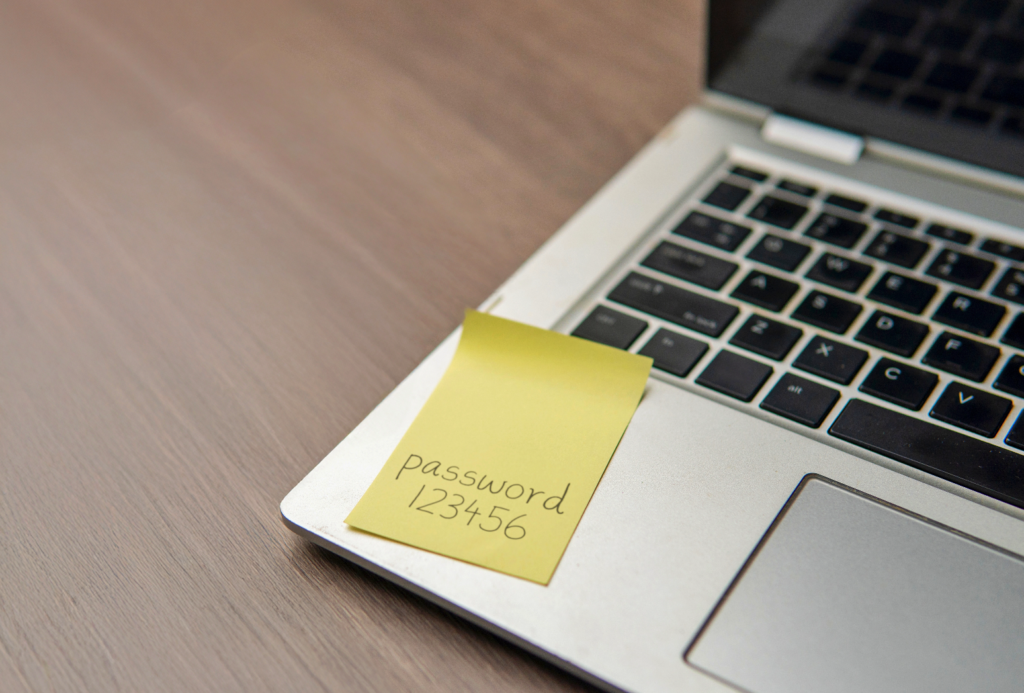
You’re trying to check your email and it’s asking for your password. You type what you think it is. Wrong. You try again. Still wrong.
Now you’re locked out of your email, and you’re starting to panic.
Take a deep breath. This happens to everyone, and you can fix it.
You won’t lose your emails. You won’t lose your account. And you don’t need to be a tech expert to get back in.
Here’s exactly what to do, step by step, for the most common email services.
First: Don’t Panic
Here’s what you need to know right away:
✓ Your emails are still there. They didn’t disappear just because you can’t log in.
✓ You can reset your password. Every email service has a way to help you get back in.
✓ This is fixable. Millions of people forget their passwords every day. The process is designed for this.
✓ Take your time. Rushing and guessing wrong multiple times can temporarily lock your account. It’s better to go slow and do it right.
Before You Start: What You’ll Need
Most email services will ask you to verify your identity before letting you reset your password. They usually ask for:
- A phone number (they’ll text you a code)
- OR a backup email address (they’ll email you a code)
- OR answers to security questions (if you set those up)
If you don’t have access to your recovery phone or email anymore, don’t worry – we’ll cover that too. It just takes a bit longer.
How to Reset Your Gmail Password
Gmail is Google’s email service (addresses ending in @gmail.com).
Step 1: Go to the Gmail login page
Open your web browser and go to gmail.com (or just Google “Gmail”)
Step 2: Enter your email address
Type your full Gmail address (like yourname@gmail.com) and click “Next”
Step 3: Click “Forgot password?”
Instead of entering a password, click the “Forgot password?” link below the password box.
Step 4: Choose how to verify it’s you
Google will show you options:
Option A: Get a code via text message
- If they have your phone number on file, they’ll show the last two digits
- Click “Send” or “Try another way”
- Check your text messages for a 6-digit code
- Enter that code
- Click “Next”
Option B: Get a code via recovery email
- If you added a backup email, they’ll show part of it (like j***@yahoo.com)
- Click “Send”
- Check that email for a code
- Enter the code
Option C: Answer security questions
- They might ask when you created the account
- Or the last password you remember
- Do your best – approximate answers sometimes work
Step 5: Create a new password
Once you verify it’s you:
- Type a new password
- Type it again to confirm
- Click “Save” or “Change Password”
Tips for your new password:
- Make it something you’ll remember but others can’t guess
- Don’t use “password123” or your birthday
- Write it down in a notebook (yes, really – that’s safer than forgetting it again)
- Don’t use the exact same password you just forgot (Google might reject it)
Step 6: You’re back in!
You should now be able to access your email with your new password.
How to Reset Your Yahoo Password
Yahoo email addresses end in @yahoo.com.
Step 1: Go to Yahoo Mail
Go to mail.yahoo.com or search “Yahoo Mail”
Step 2: Click “Sign In” then “Forgot password?”
Enter your Yahoo email address and click “Next”
Click “Forgot password?” below the password box
Step 3: Verify your identity
Yahoo will ask you to verify using:
Option A: Text message
- They’ll show the last two digits of your phone number
- Click “Yes, text me a code”
- Enter the code they send you
Option B: Recovery email
- Click “Email me a code” if that option appears
- Check your backup email
- Enter the code
Option C: Can’t access phone or email?
- Click “I don’t have access to this mobile number” or “Use a different verification method”
- You’ll need to answer security questions or provide account details
- This takes longer but works
Step 4: Create new password
Enter your new password twice and click “Continue”
Step 5: Update recovery info
Yahoo will ask if you want to update your phone number or recovery email. Do this. It makes recovering your account easier next time.
How to Reset Your Outlook/Hotmail Password
Outlook.com and Hotmail are Microsoft email services.
Step 1: Go to Outlook.com
Go to outlook.com or search “Outlook mail”
Step 2: Click “Sign in” then “Forgot password”
Enter your email address and click “Next”
Click “Forgot my password” and click “Next”
Step 3: Choose verification method
Microsoft will show you options:
Option A: Email a code
- They’ll show part of your recovery email (like a***@gmail.com)
- Click “Send code”
- Check that email
- Enter the code
Option B: Text a code
- If you have a phone number on file
- Click “Text”
- Enter the code from your text message
Option C: Use the Microsoft Authenticator app
- If you have this set up (most people don’t)
- Approve the notification on your phone
Step 4: Create new password
Type your new password twice and click “Next”
Step 5: You’re back in
You should now be able to access your email.
How to Reset Your iCloud/Apple ID Password
iCloud email addresses end in @icloud.com, @me.com, or @mac.com. This is the same as your Apple ID.
Step 1: Go to iForgot.apple.com
This is Apple’s password reset page.
Or from your iPhone:
- Go to Settings
- Tap your name at the very top
- Tap “Password & Security”
- Tap “Change Password”
Step 2: Enter your Apple ID email address
Type your full iCloud email address and click “Continue”
Step 3: Choose how to reset
Option A: Get an email
- Apple will send a reset link to your recovery email
- Click the link in that email
- Create a new password
Option B: Answer security questions
- If you set these up, you’ll answer 2-3 questions
- Like “What was the name of your first pet?”
- Be as specific as you remember
Option C: Use another Apple device
- If you’re logged into iCloud on another iPhone or iPad
- You can reset your password from that device
- Settings > [Your Name] > Password & Security > Change Password
Step 4: Create new password
Apple passwords need:
- At least 8 characters
- At least one number
- At least one uppercase letter
- At least one lowercase letter
Step 5: Sign in everywhere
After changing your Apple ID password, you might need to sign back in on your iPhone, iPad, or other Apple devices.
What If You Can’t Access Your Recovery Email or Phone Number?
This is trickier, but not impossible.
For Gmail:
- Go through the password reset process
- When it asks for a recovery email or phone, click “Try another way”
- Google will ask you questions to verify it’s you:
- When did you create this account?
- What’s the last password you remember?
- What email addresses do you send to most often?
- Answer as best you can
- Google will review your answers (this can take 24-48 hours)
- They’ll email you at the recovery address you provide
Be patient. This process is slower but it works if you answer honestly.
For Yahoo:
- Click “I don’t have access to my mobile number or email”
- You’ll need to create a NEW email address temporarily (Yahoo will walk you through this)
- Yahoo will contact you at this new address with next steps
- The process takes 24-48 hours
For Outlook/Microsoft:
- Click “I don’t have any of these”
- Fill out the account recovery form
- Provide as much detail as you can:
- Recent emails you sent
- Subject lines you remember
- Contacts in your address book
- Microsoft will review (takes 24 hours)
For Apple/iCloud:
- Go to iforgot.apple.com
- Click “I don’t have access to any of these”
- You’ll start an account recovery process
- This can take several days
- Apple will verify your identity through other means
The key: The more details you can provide about your account, the faster the recovery.
How to Avoid This in the Future
Once you’re back in, do these things so this doesn’t happen again:
1. Write down your password
Yes, on actual paper, in a notebook you keep somewhere safe (not on your computer).
“But isn’t that insecure?”
For most people, the risk of someone breaking into your house and finding your password notebook is WAY lower than the risk of forgetting your password. Just don’t leave it next to your computer.
2. Update your recovery information NOW
While you still have access:
For Gmail:
- Click the gear icon > “See all settings”
- Click “Accounts and Import”
- Add or update recovery email and phone number
For Yahoo:
- Click your name in the top right
- Click “Account Info”
- Update phone number and recovery email
For Outlook:
- Click your profile picture
- Click “My Microsoft account”
- Click “Security”
- Update contact info
For iCloud/Apple:
- Settings > [Your Name] > Password & Security
- Add or update trusted phone number
3. Use a simple but secure password
Bad passwords:
- password123
- Your birthday
- “qwerty”
Better passwords:
- A phrase you’ll remember: “ILove2Garden!”
- Three random words: “BlueCoffeeChair88”
- A sentence with numbers: “MyDog2024Rex”
Write it down. Seriously. A written password you can find is better than a perfect password you’ll forget.
Special Cases and Common Problems
“It says my account doesn’t exist”
Possible reasons:
- You’re spelling the email address wrong (check carefully)
- You might have a different email address than you think (try variations)
- Your account was deleted (usually after years of not using it)
- You’re on the wrong email service (Yahoo vs Gmail, for example)
What to do:
- Check if you have any old emails on another device that show the correct address
- Try common variations (@gmail.com vs @yahoo.com)
- Ask family members if they have your email address saved
“It says I’ve tried too many times”
If you guess your password wrong too many times, email services temporarily lock you out (usually for a few hours).
What to do:
- Wait 24 hours
- Don’t keep trying – it will extend the lockout
- Come back tomorrow and use the “Forgot password” option instead of guessing
“I keep getting locked out even after resetting”
This might mean someone else is trying to access your account.
What to do:
- Reset your password immediately
- Choose a completely new password (not similar to the old one)
- Check your account settings for any suspicious activity
- Enable two-factor authentication (extra security)
“It won’t accept my new password”
Each service has different requirements. Your new password might need:
- A certain length (usually at least 8 characters)
- A mix of uppercase and lowercase letters
- At least one number
- A special character like ! or @
What to do:
- Read the error message carefully – it usually tells you what’s missing
- Try: FirstWordSecondWord123!
- This usually meets all requirements
When to Suspect You’ve Been Hacked
Warning signs:
- You’re getting password reset emails you didn’t request
- Your contacts say you sent them weird emails
- Your password stopped working suddenly
- You can’t reset because your recovery info changed
What to do:
- Reset your password IMMEDIATELY using the steps above
- Check your account’s “Recently used devices” or “Activity” to see if someone else logged in
- Change your security questions and recovery info
- Enable two-factor authentication if available
- Tell your contacts if your account sent spam
Still Stuck?
If you’ve tried everything above and still can’t get back into your email, you have a few options:
1. Contact the email provider directly
- Gmail: Google Help Center (search “Contact Gmail Support”)
- Yahoo: Yahoo Help Center
- Outlook: Microsoft Support
- Apple: Apple Support (1-800-MY-APPLE)
Be prepared to prove you own the account (details about when you created it, emails you’ve sent, etc.)
2. Create a new email account
If your account is very old and you’ve lost access to all recovery methods, it might be easier to start fresh:
- Create a new Gmail, Yahoo, or Outlook account
- Tell your important contacts your new address
- Forward important emails if you eventually regain access
3. Get patient help walking through the process
If you’re feeling overwhelmed or not sure which steps to follow, Tech with Tessa can help you reset your password step by step – looking at what you’re seeing on your screen and guiding you through each click.
No judgment. No rush. Just patient help getting you back into your email.
Try Tessa free for 7 days – get help with email password resets, security questions, and staying safe online.
Tessa is part of the Smart Buddy Network, which also offers guidance for healthcare and relationships. Learn more